How to Check Car Tax Status and SORN Free in 4 Steps
Learn how to check car tax status with a reg number: use the free DVLA service, read taxed, untaxed or SORN results, and know what to do next.

How to Check Car Tax Status and SORN Free in 4 Steps
The quickest way to check car tax status is to enter the vehicle's registration number on the free GOV.UK vehicle enquiry service. It tells you within seconds whether the car is taxed, untaxed or declared off the road with a Statutory Off Road Notification (SORN). A free tax checker, including the one at Vehiclepedia, shows the same DVLA status alongside other details.
The trouble is that tax status is easy to get wrong. Vehicle tax does not pass to a new owner, a seller may say "it's taxed" when it isn't, and a recent renewal can take a couple of days to appear. Driving an untaxed car can bring a fine of up to £1,000, so a guess is not good enough.
This guide walks you through the check in four steps: get the registration right, run the check, read the result, then act on it. Vehiclepedia is a UK vehicle history service, so we also point out where a tax check stops being enough when you are buying a used car.
What a car tax check covers and what you need
A car tax check tells you whether a UK vehicle has valid vehicle tax today, or whether it has been registered as off the road (SORN). That is all the official check answers, and it is exactly what you need before you drive or buy.
What the check does and does not tell you
The result shows one of three states: taxed, untaxed or SORN. Paid-up tax is the legal requirement for using a vehicle on a public road, which is why the answer matters to sellers, buyers and owners alike. When you buy a car, the previous owner's tax does not transfer to you, so you must tax it yourself before driving it away.
The check does not cover MOT validity, insurance, finance or accident history. Insurance has its own lookup, askMID, and the rest sit in a full vehicle history report.
A tax check answers one question only: can this vehicle legally be on the road today?
What you need before you start
You need the vehicle's registration number. That is it for a status check, and you do not need to be the owner. If you want to see the current tax rate for the vehicle on the GOV.UK service, you also need the 11-digit reference number from the V5C log book.
Taxing a vehicle is different from checking it. For that you need the 16-digit reference from a V11 reminder letter, the V5C reference, or the V5C/2 new keeper slip. Keep those to hand if you suspect you will need to renew.
Step 1. Get the registration number right
Copy the registration from the vehicle itself, not only from an advert or a message. Most failed checks come from a mistyped plate, not from a problem with the car.
Where to find the registration
If you own the vehicle, the number is on the number plates, the V5C log book, the V11 reminder and your insurance documents. If you are buying, read it off the plate when you see the car and compare it with the listing. A mismatch between the advert and the plate is a reason to stop the viewing.
Typing mistakes to avoid
The two classic errors are the letter O for the number 0, and the letter I for the number 1. Type the registration without spaces and in capitals, and read it back against the plate before you press search. If the service says it cannot find the vehicle, recheck those characters first.
Check the plate on the car, then check the characters you typed. A single wrong digit returns the wrong vehicle or none at all.
Step 2. Run the check on a free tax checker
Run the check on the official DVLA service first, then use a tax checker tool if you want more detail on the same vehicle. Both are free for the basic status.
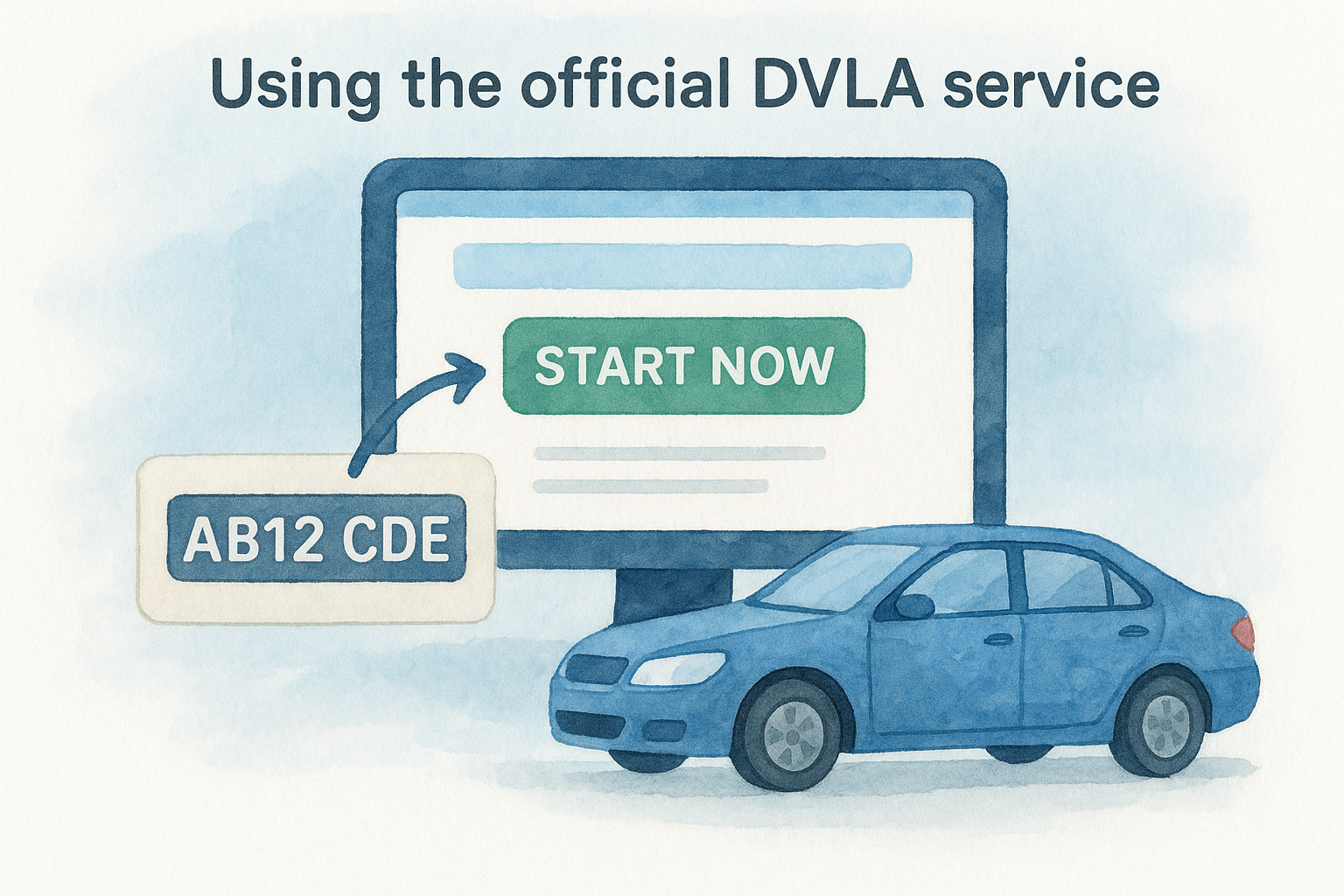
Using the official DVLA service
- Go to the GOV.UK check if a vehicle is taxed page.
- Select Start now to open the vehicle enquiry service.
- Enter the registration number and continue.
- Confirm that the make and colour shown match the vehicle in front of you.
- Read the tax status and, where shown, the date the tax runs out.
If you have just applied for tax or a SORN, the DVLA says records can take up to 2 working days to update after approval. Wait before you assume something is wrong.
Using a free tax checker for more detail
A tax checker from a vehicle history service takes the same DVLA data and adds context. Vehiclepedia updates its data nightly from official sources and takes its DVLA data directly from the DVLA API.
| Check | Price | What it shows |
|---|---|---|
| GOV.UK vehicle enquiry | Free | Tax or SORN status |
| Vehiclepedia Free Check | Free | Tax and emissions, MOT history, export check, recall check, make and model |
| Vehiclepedia Car tax Check | See the pricing page | Tax expiry date, road tax band, outstanding tax, tax history and V5C details, from the DVLA |
Use the free check to confirm the basics, and the Car tax Check when you want the tax history behind them.
Start with the official service for the legal answer, then add a checker when you need the detail around it.
Step 3. Read the result correctly
Each result means something different, and only one of them lets you drive. Match what you see on screen to the table below.
The three statuses explained
| Result | What it means | What to do |
|---|---|---|
| Taxed | Tax is valid until the date shown | Note the expiry date and diarise the renewal |
| Untaxed | No valid tax and no SORN | Do not drive it, except to a pre-booked MOT. Tax it first |
| SORN | Declared off the road | Keep it off public roads. Tax it before any use |
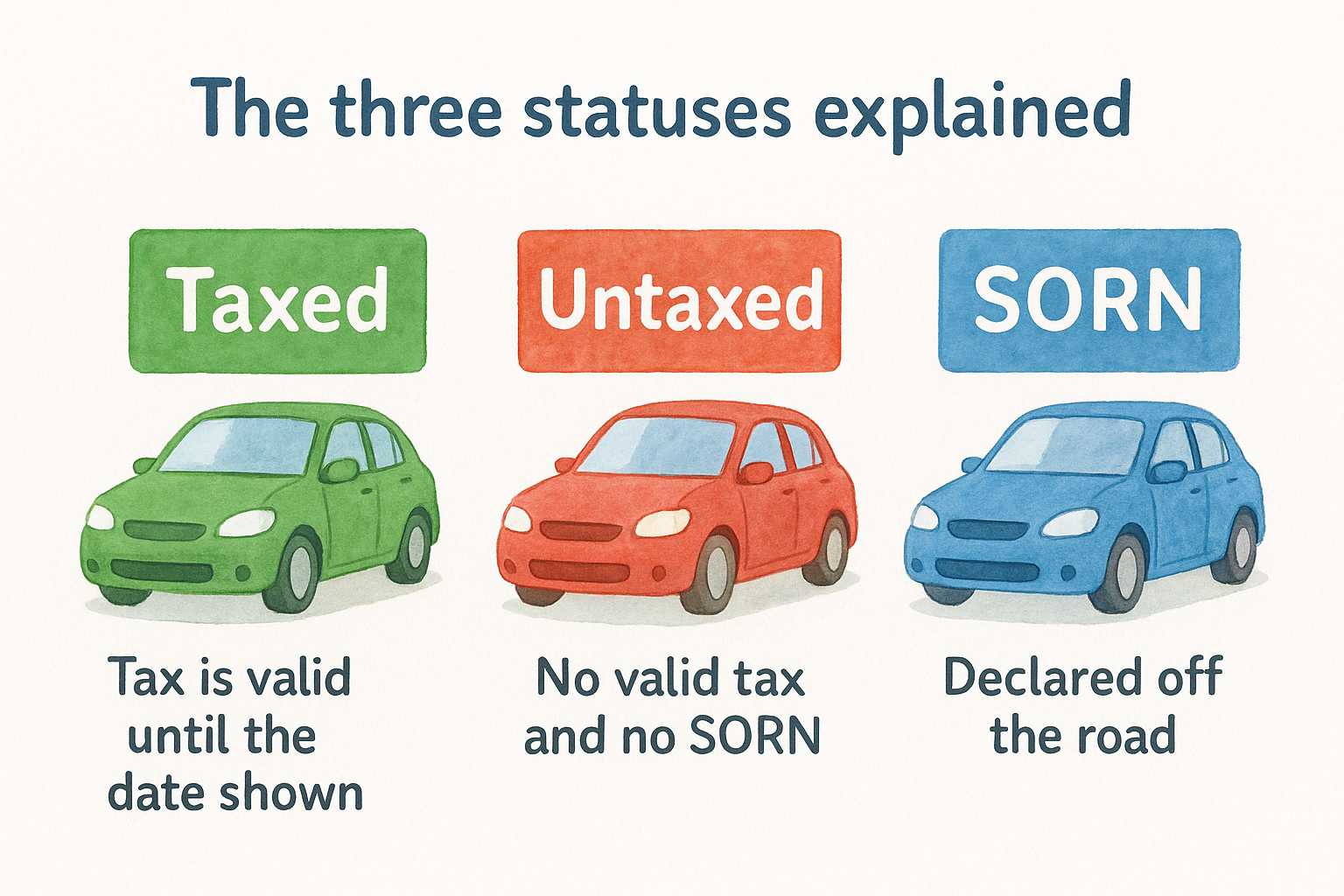
An untaxed car is not the same as a SORN car. A SORN is a deliberate declaration by the keeper, while untaxed usually means someone forgot, or the tax has lapsed.
A worked example: the "I taxed it yesterday" seller
You view a car on a Saturday. The seller says they renewed the tax on Friday, but your check says untaxed. That can be true, because records can lag by up to 2 working days. It can also be untrue.
Ask the seller for the confirmation email or payment receipt, and run the check again on Tuesday. Do not hand over money until the status updates. If the make and colour on screen differ from the car in front of you, walk away.
A status that disagrees with the seller's story is not an error to ignore. Get proof, then recheck.
Step 4. Act on what the check shows
Once you know the status, the next move is simple: tax the vehicle, keep it off the road, or walk away from the deal. The only mistake is to drive first and check later.
If the vehicle is untaxed
You can drive an untaxed vehicle only to a pre-booked MOT test. Otherwise, tax it before it moves. You can tax a vehicle online on GOV.UK using your V11 reference, V5C reference or V5C/2 slip. Some vehicles cost £0 to tax but still have to be taxed.
If you spot someone else's untaxed vehicle, you can report it to the DVLA with the registration, make, model, colour and location.
If the vehicle is on SORN, or you are buying it
A SORN means the vehicle must stay off public roads, and you can make a SORN on GOV.UK when you take a vehicle off the road. You get a refund for tax left on the vehicle, but only for full months.
If you are buying, treat the tax check as step one of several. It does not show whether the car is stolen, written off or still on finance. Vehiclepedia's premium reports cover those checks, using Experian finance data, Police National Computer stolen data via Experian and MIAFTR write-off data. They come with a data guarantee of up to £30,000 for non-trade users.
Tax it before you drive it, and never let a clean tax status stand in for a full history check.
Check first, then drive
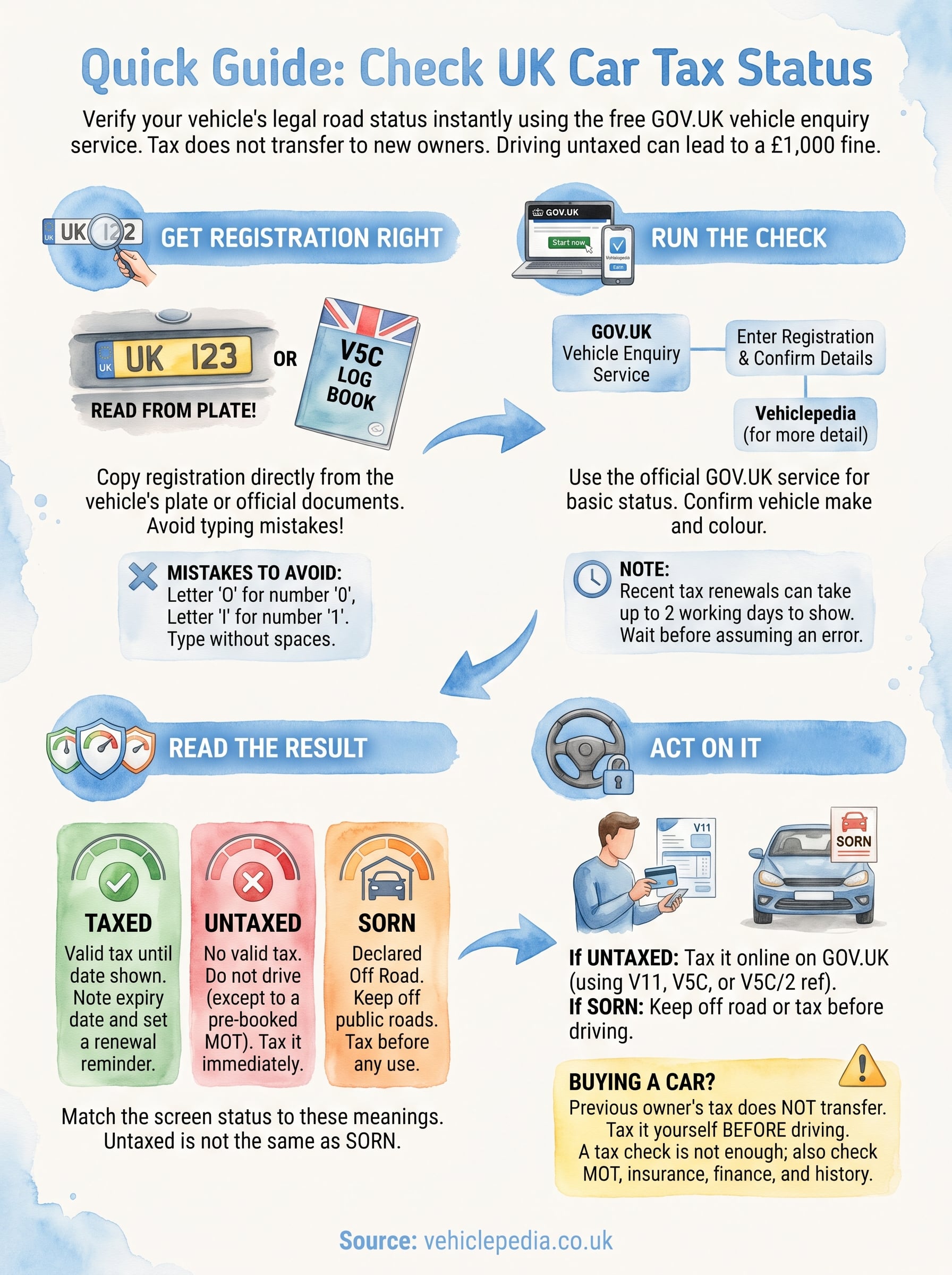
Checking car tax status takes under a minute: copy the registration from the plate, run it through the GOV.UK service, and read whether it is taxed, untaxed or SORN. Allow up to 2 working days for recent changes to show, and tax the vehicle yourself before you drive any car you have just bought.
If you are buying a used car, a tax result only covers one risk. See what a full Vehiclepedia report includes before you commit your money.