How to Buy Car Tax Online in the UK: A Quick Guide
Learn how to buy car tax online UK in four simple steps, find your reference number, and avoid fines with our quick GOV.UK guide.

How to Buy Car Tax Online in the UK: A Quick Guide
Your reminder letter has landed, or your MOT just came back clean, and now you're wondering how to sort your car tax without queuing at a Post Office. If you want to buy car tax online UK drivers actually rely on, the whole process runs through GOV.UK and takes most people under five minutes, provided you've got the right documents to hand.
This guide walks you through the exact steps: what you need before you start (your V11 reminder or logbook reference), how to pay by card or Direct Debit, and what happens if you're taxing a car you've just bought. We'll also cover common snags, like a missing MOT or an insurance record that hasn't updated yet, so you're not left stuck halfway through.
Before you tax anything, though, it pays to know what you're actually driving. A quick vehicle history check through Vehiclepedia shows you MOT status, road tax cost, and ownership records using your registration plate, useful whether you're renewing tax on your own car or double-checking one you're about to buy.
What you need before taxing your car online
Before you open a browser tab, gather the right paperwork. The GOV.UK vehicle tax service is quick, but it rejects you instantly if your reference number doesn't match DVLA's records or if your car fails a basic legal check first. Get these three things sorted and you'll breeze through the actual payment step.
The right reference number
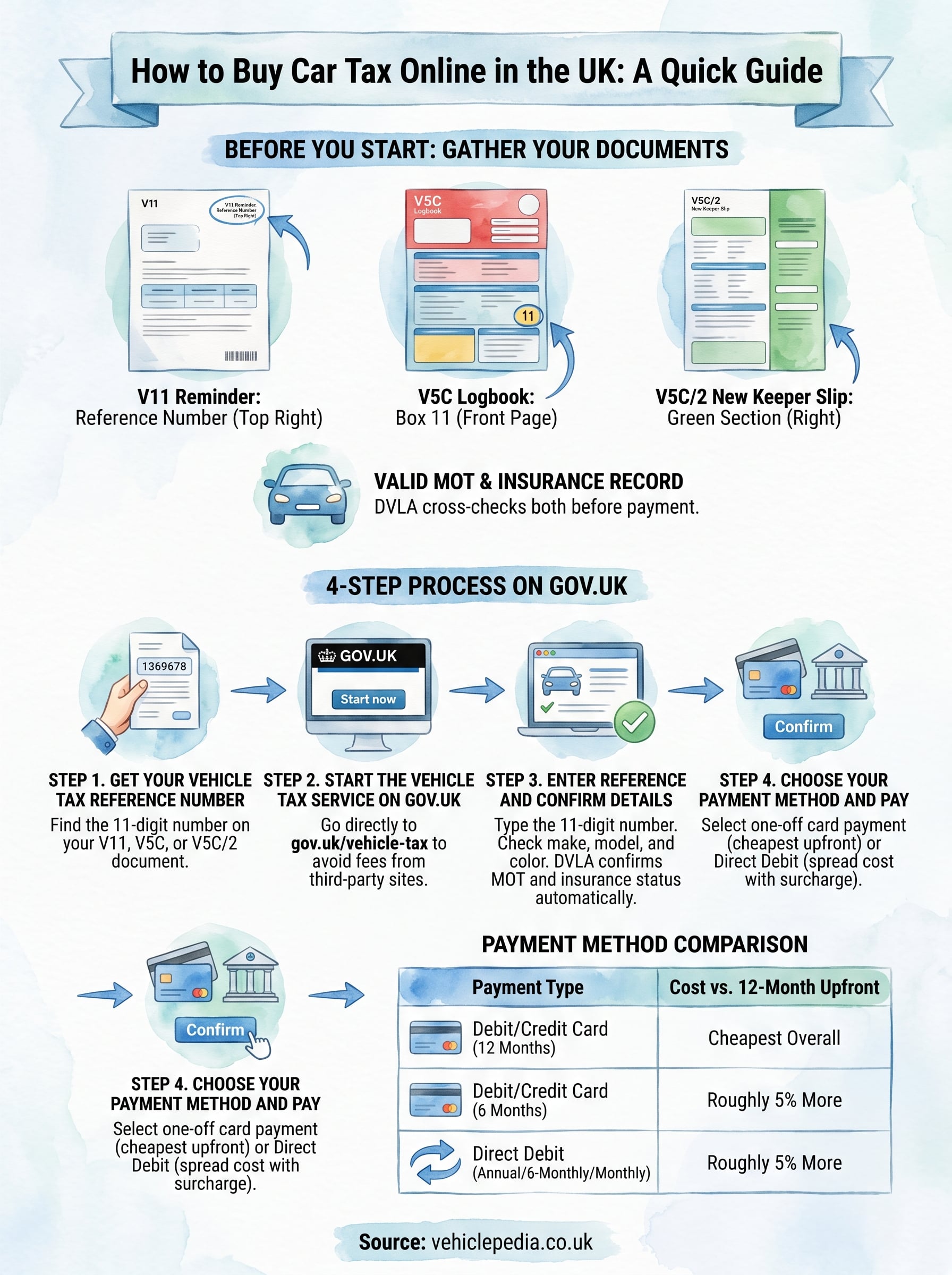
You need one of three documents, each with an 11-digit reference number printed on it. Most people use the V11 reminder letter that DVLA posts out roughly a month before tax runs out, but you can also use your V5C logbook or, if you've just bought the car, the green new keeper slip (V5C/2). Check the table below to see exactly where to look.
| Document | Where to find the reference number | When to use it |
|---|---|---|
| V11 reminder letter | Top right corner, labelled "reference number" | Renewing tax on a car you already own |
| V5C registration certificate | Front page, box labelled "11" | If you've lost your V11 or never got one |
| V5C/2 new keeper slip | Right-hand side, green section | Taxing a car you've just bought, before the full V5C arrives |
If none of these are to hand, you can't tax online. You'd need to visit a Post Office that deals with vehicle tax and bring proof of ID and address instead, which takes longer and defeats the point of doing this from your sofa.
A valid MOT and insurance record
DVLA cross-checks your registration against the MOT database and the Motor Insurance Database before it lets you pay. If your MOT expired last week, or your insurer hasn't updated your policy yet, the system will block you or flag an error partway through. This catches people out constantly, especially after switching insurers, since some providers take 24 to 48 hours to update the database.
Sort your MOT and insurance before you start, because DVLA won't let you tax a car that fails either check.
If you're unsure whether your MOT is current, you can check it separately using your registration plate before you attempt to tax the car, which saves you from getting halfway through the process only to hit a dead end.
A card or bank details for payment
You'll need a debit or credit card for a one-off payment, or your bank details if you want to set up a Direct Debit for monthly, six-monthly, or annual instalments. Direct Debit costs slightly more overall (there's a 5% surcharge built into the monthly and six-monthly rates) but spreads the cost, which matters if a lump sum doesn't suit your budget right now.
Once you've confirmed your reference number matches a valid document, your MOT and insurance are both current, and you've got payment details ready, you're set to start the actual transaction on GOV.UK.
Step 1. Get your vehicle tax reference number
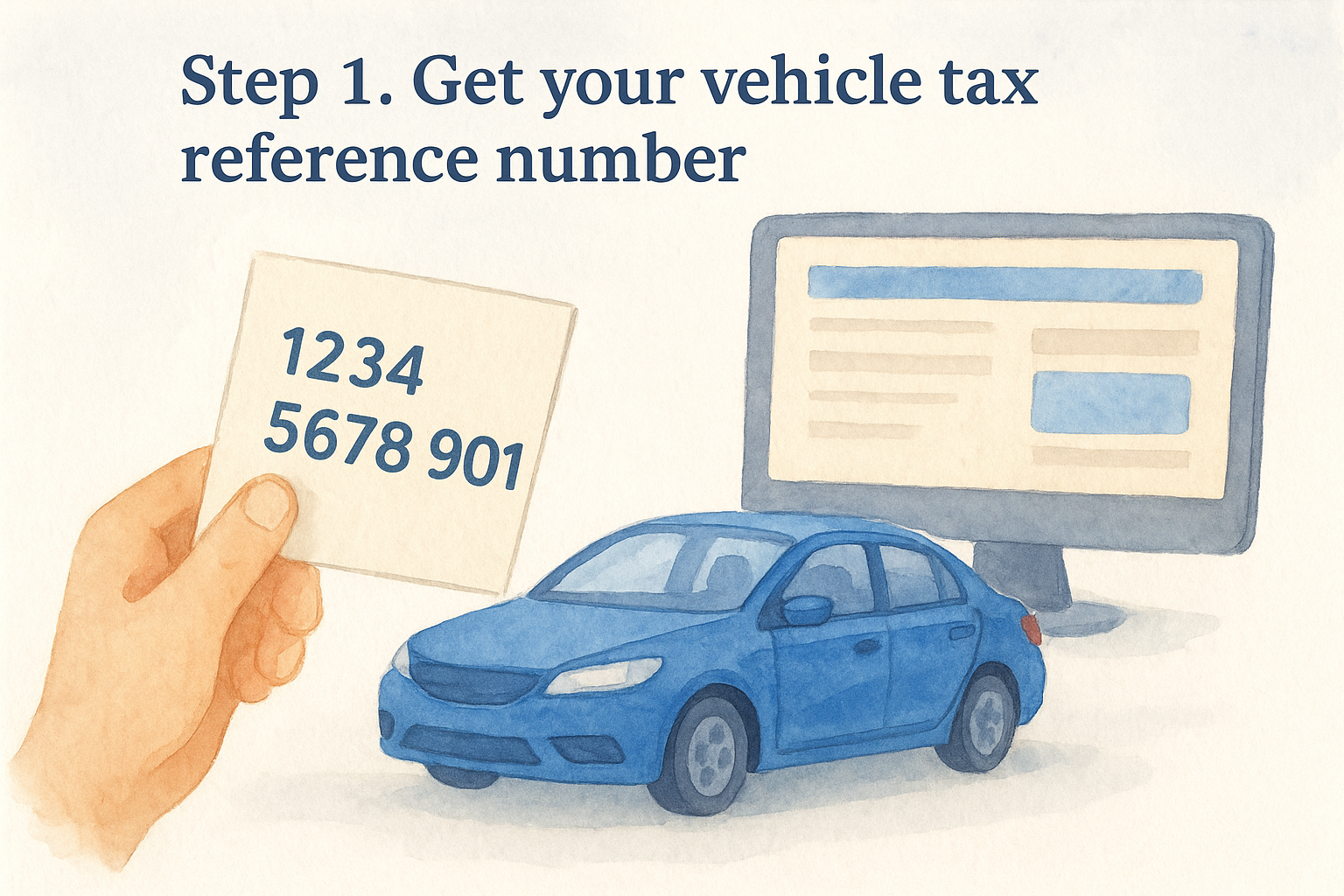
Start by finding the 11-digit reference number that unlocks the whole process. This single number tells DVLA exactly which vehicle you're taxing and pulls up its MOT and insurance records automatically, so getting it right from the start is the difference between a five-minute job and a frustrating error message. Whether you're renewing an existing car or trying to buy car tax online UK style for a vehicle you've just picked up, the reference always comes from one of the three documents covered earlier.
Locate the right document
Grab whichever document applies to your situation and find the printed reference number before you open your browser. Doing this first means you're not hunting through drawers halfway through the GOV.UK form while a payment screen times out.
- V11 reminder letter: check the top right corner, clearly labelled
- V5C logbook: look in box 11 on the front page
- V5C/2 new keeper slip: the green section on the right-hand side, used only when the full logbook hasn't arrived yet
Without a matching 11-digit reference from one of these three documents, DVLA's system won't let you proceed, no exceptions.
What if you can't find your reference number
Sometimes the letter goes missing, or you've bought a car and the seller forgot to hand over the new keeper slip. If that's your situation, you've got two options: order a replacement V5C from DVLA, which takes about five working days and costs £25, or head to a Post Office that handles vehicle tax and bring photo ID plus proof of address instead. Neither option is instant, so it's worth digging through paperwork one more time before committing to a wait. Once you've got a valid reference number confirmed against the right document, you're ready to move to the actual GOV.UK service and start the transaction itself.
Step 2. Start the vehicle tax service on GOV.UK
Once you've got your reference number confirmed, head straight to the official vehicle tax service on GOV.UK rather than typing "tax my car" into a search engine. Search results are full of paid ads for third-party sites that charge a booking fee for something that's free to do directly, and some aren't affiliated with DVLA at all. Go to gov.uk/vehicle-tax and you'll land on the genuine page, no middlemen, no extra charges.
Find the correct starting point
Look for the green "Start now" button on the vehicle tax page. This is the only route into the service, and it's the same page whether you're renewing your own car, taxing one you've just bought, or setting up a Direct Debit for the first time. GOV.UK doesn't have separate URLs for each scenario, the system asks what applies to you once you're inside.
Always start from gov.uk/vehicle-tax directly. Third-party sites that mimic this page charge fees DVLA never asks for.
What the service asks first
After clicking through, you'll land on a short screen asking which document you're using, your V11, V5C, or V5C/2. Select the correct one, since this determines which fields the next screen shows you. Choosing the wrong document type here is a common reason people get stuck later, because the reference number format and expected details differ slightly between them.
Before you continue, double check you're not being asked for a service fee or subscription at this stage. DVLA's own service never charges you before you've even entered your reference number, so if a payment prompt appears this early, close the tab and go back to gov.uk directly. Genuine GOV.UK pages carry the government crest and a gov.uk domain, both worth confirming if you've clicked through from a search result rather than typing the address yourself.
Step 3. Enter your reference and confirm your details
With your document type selected, GOV.UK asks for the 11-digit reference number itself. Type it exactly as printed, no spaces, no letters mixed in where DVLA expects numbers. Get one digit wrong and the system either rejects the entry outright or, worse, pulls up the wrong vehicle, so it's worth reading it back twice before you hit continue.
Check the vehicle details on screen
Once your reference number is accepted, GOV.UK shows you a summary screen with the registration plate, make, model, and colour of the vehicle it thinks you're taxing. Stop here and actually read it. This is your one chance to catch a mismatch before you pay for tax on the wrong car, which happens more often than you'd think when someone's just bought a used car and the seller's old reference number is still floating around in a drawer somewhere.
Always confirm the make, model, and colour match before continuing. A mismatched vehicle summary means you're about to tax the wrong car.
If anything looks off, back out and double check which document you're using. A V5C/2 new keeper slip pulls details tied to the previous owner's record until DVLA fully processes the change, so don't panic if a few fields look slightly behind, but the registration and make should still be correct.
Confirm your MOT and insurance status
Below the vehicle summary, the service displays your current MOT expiry date and confirms whether your car shows up as insured. This is DVLA cross-referencing the databases mentioned earlier, live, in real time. If either shows as expired or missing, the service stops you here rather than letting you get further into the payment screens, so you're better off catching this now than after entering card details.
Getting an error at this stage almost always means one of two things: your MOT genuinely needs renewing, or your insurer hasn't updated the Motor Insurance Database yet. Either way, resolving it means pausing the tax process, sorting the underlying issue, then coming back to gov.uk/vehicle-tax to start again from Step 2. Once everything on this screen checks out, though, you're clear to move on to choosing how you'll actually pay.
Step 4. Choose your payment method and pay
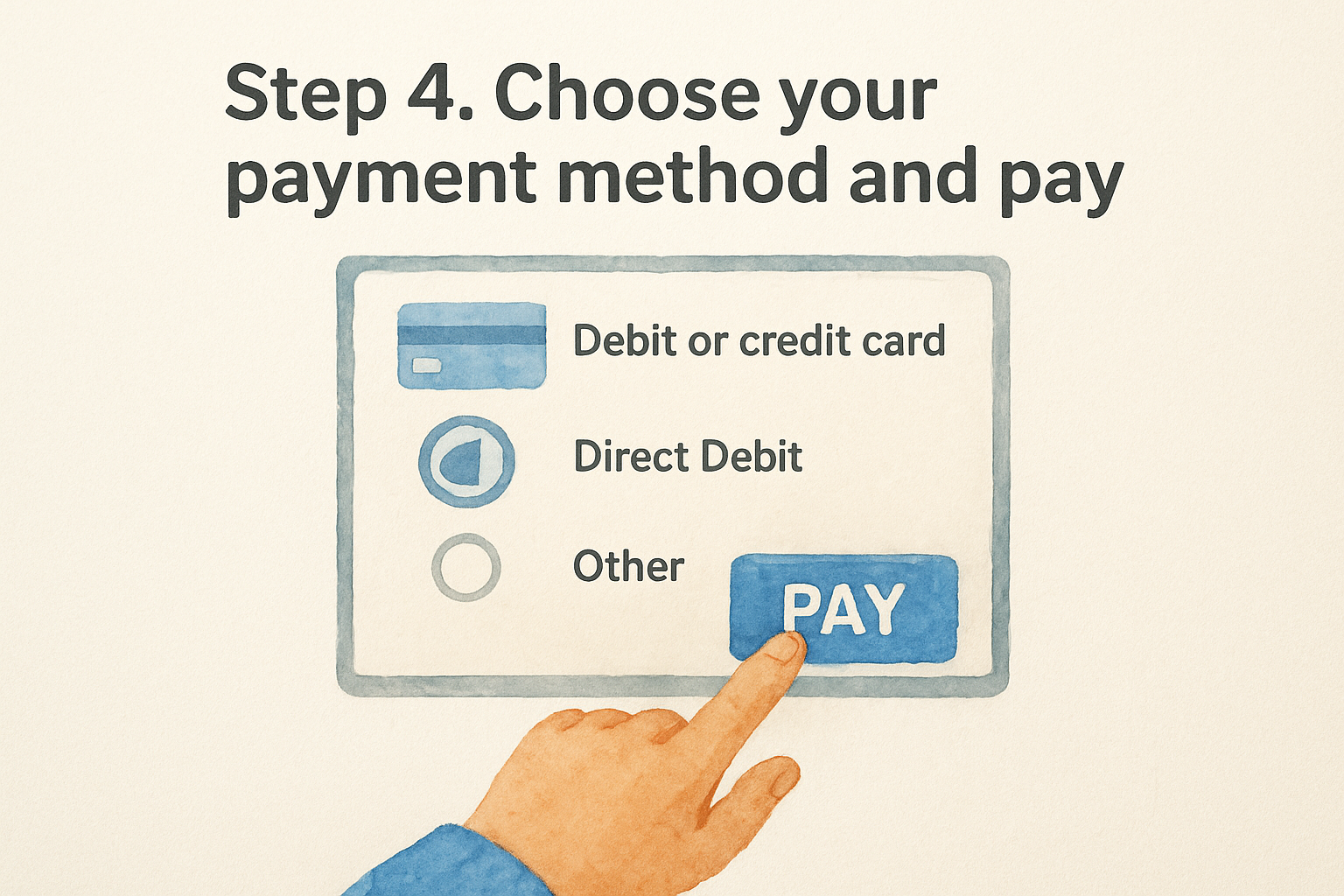
With your vehicle and MOT details confirmed, GOV.UK finally shows you the payment screen, where the real decision is how you want to split the cost. You can pay upfront for 12 or 6 months by debit or credit card, or set up a Direct Debit that DVLA takes automatically each month, every 6 months, or annually, so you never get caught out by a missed reminder again.
Compare your payment options
Before picking a method, weigh up the surcharge against the convenience. Direct Debit is the only option that renews automatically, but you pay a bit more for that peace of mind.
| Payment method | How it's paid | Cost compared to 12-month upfront |
|---|---|---|
| Debit or credit card, 12 months | One lump sum | Cheapest overall |
| Debit or credit card, 6 months | Two payments a year | Roughly 5% more |
| Direct Debit, annual | One automatic payment | Roughly 5% more |
| Direct Debit, 6-monthly | Two automatic payments | Roughly 5% more |
| Direct Debit, monthly | Twelve automatic payments | Roughly 5% more |
If you want the lowest price, pay by card for 12 months upfront; if you want to never miss a renewal, choose Direct Debit.
Complete the transaction
Select your preferred option, enter your card number or your bank sort code and account number, then review the summary one last time before confirming. GOV.UK shows the exact date your tax starts and, for Direct Debit, the date each future payment leaves your account, so check that against your own budgeting before you commit.
Once you submit payment, you'll see a confirmation screen and, shortly after, an email confirming the transaction went through. Keep that email; it's your proof of payment if anything ever gets disputed. Nothing physical arrives in the post anymore, since DVLA scrapped paper tax discs back in 2014, so your vehicle tax reminder confirmation email and the record on GOV.UK's system are all you need going forward. If you ever want to double check your tax status later, a quick registration lookup shows you the current expiry date without logging back into the full DVLA service.
Keeping your car legally on the road
Taxing your car online really does come down to four steps: find your reference number, start the service on GOV.UK, confirm your details, and pay. Miss the MOT or insurance check and you'll get stuck, but sort those first and the whole thing takes less time than reading this guide did. Driving untaxed carries fines and points you don't need, so set a calendar reminder for next year rather than waiting for the V11 letter to land.
Before you renew tax on a car you're thinking of buying, though, make sure you actually know its history. A free vehicle check through Vehiclepedia flags MOT gaps, mileage discrepancies, and past ownership issues that a tax reference number alone won't show you. If you want the fuller picture, including finance and write-off status, take a look at our sample report to see exactly what's covered before you commit to anything.