Tax Checker by Reg: How to Check Car Tax Online
Use our tax checker by reg to confirm real-time DVLA tax status, spot mismatched plates, and avoid buying an untaxed or cloned car.
Tax Checker by Reg: How to Check Car Tax Online
Buying a car with unpaid road tax, or not knowing whether the tax is even valid, can catch you out at the worst possible moment. A tax checker by reg solves this in seconds: type in the number plate and you get the current tax status, cost, and renewal date pulled straight from official records.
If you're wondering how to actually do this, the process is simple. Any decent car reg tax checker draws on DVLA data, so you don't need the logbook or a phone call to check whether a vehicle is taxed, SORN, or due for renewal. You just need the registration number and a minute of your time.
This guide walks you through exactly how to run the check, what the results mean, and why you should always check car tax before buying a used vehicle. We'll also cover what to do if the tax status looks wrong, and how this fits into a wider vehicle history check before you hand over any money.
What you need before checking your car tax
Running a tax check takes less effort than most people expect. You don't need the V5C logbook, the vehicle's MOT certificate, or any paperwork from the seller. The only essential is the vehicle registration number, the combination of letters and numbers on the number plate, sometimes called the reg or VRM. Everything else the checker needs, it pulls directly from official records the moment you submit the plate.
The registration number
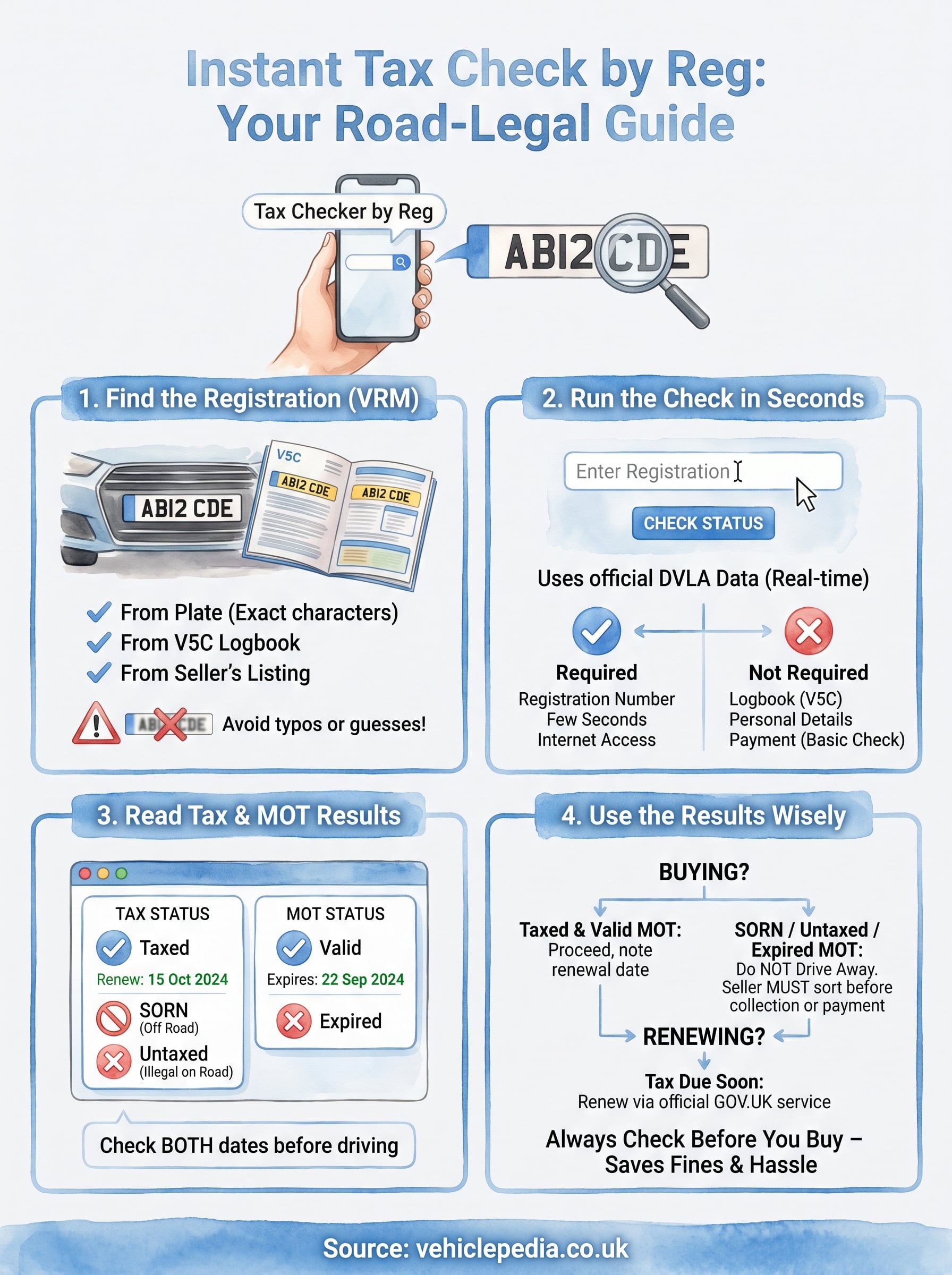
Before you go further, make sure you've got the reg exactly right. A single mistyped character will either return no result or, worse, pull up the wrong vehicle entirely. If you're viewing a car in person, photograph the plate rather than relying on memory. If you're checking a listing online, copy the reg straight from the advert where possible, since typing errors are the most common reason a tax checker by reg comes back empty.
Get the reg wrong and you're not checking a car, you're checking a stranger's.
What you don't need
A proper vehicle tax checker should never ask for sensitive personal or financial details just to show you the tax status. Be wary of any site that does. Here's a quick comparison of what's required versus what should raise a flag:
| Required | Not required |
|---|---|
| Vehicle registration number | Your bank details |
| A few seconds of your time | The seller's National Insurance number |
| An internet connection | Payment, for a basic tax status check |
Where to check
Stick to sources that draw directly on DVLA data, since that's the only authoritative record of a vehicle's tax status in the UK. You can use the government's own check the tax cost of a vehicle tool, or a vehicle history platform like Vehiclepedia that layers the same DVLA-sourced tax and MOT data alongside broader history checks such as write-off status, mileage records, and ownership history. Either route gives you the same underlying facts, but a fuller history check saves you running separate lookups later if you decide to dig deeper before buying.
Step 1. Find your vehicle's registration number
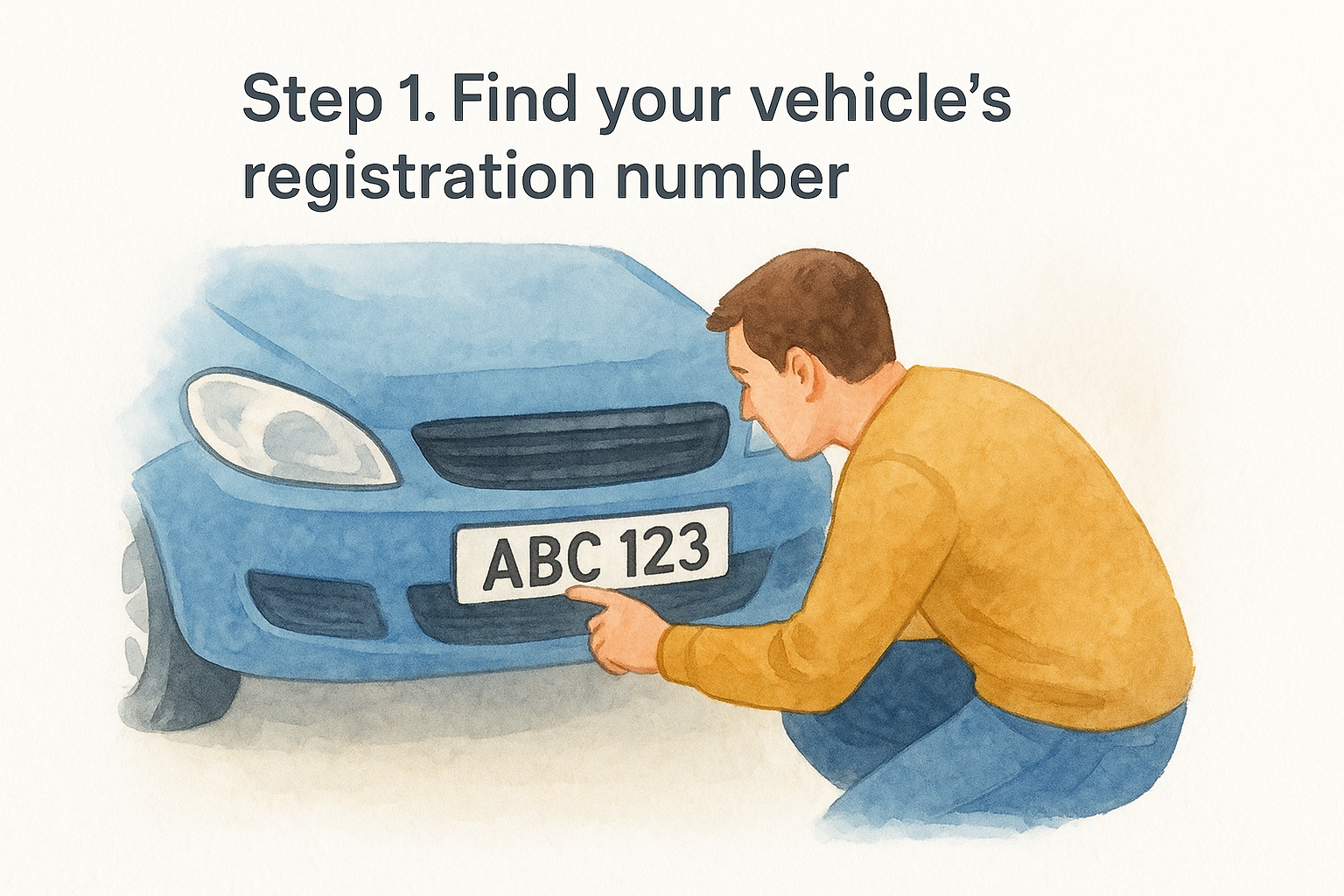
Before you can run any check, you need the exact registration number, also called the reg or VRM, taken straight from the plate itself rather than a half-remembered combination. Every UK-registered vehicle displays this on a front and rear number plate, formatted as two letters, two numbers, then three letters for cars registered since September 2001, with older vehicles following different formats.
On the vehicle
Walk up to the car and note the reg from the plate itself, not from a photo taken at an angle or in poor light, since a smudged 8 can easily look like a B or a 3. Imported vehicles sometimes display non-standard plates, so if the format looks unfamiliar, check the V5C logbook instead, which will show the reg the DVLA has on file.
If the plate doesn't match the paperwork, stop and ask why before you go any further.
From documents or online listings
Selling adverts almost always list the reg somewhere in the description or the photos, so copy it directly rather than retyping it from memory. If you're already at the point of viewing the car, cross-reference the plate against the V5C document the seller provides. Any mismatch between the plate, the listing, and the logbook is a warning sign worth investigating before you go anywhere near a tax checker by reg, since it can point to plate cloning or a car that's been misdescribed.
Step 2. Run the tax check by reg
Once you've got the correct plate in hand, running the actual check takes seconds. Open Vehiclepedia's free lookup tool, or the GOV.UK vehicle tax checker, and you're ready to go. There's no account to create and no payment needed for a basic tax and MOT status check, so don't let any site talk you into entering card details at this stage.
Entering the registration
Type the reg into the search box exactly as it appears on the plate, with no extra spaces or symbols. Most checkers will auto-format the input, but it still pays to double-check before you hit submit. Here's the basic process:
- Go to the tax checker page.
- Enter the vehicle registration number in the search field.
- Confirm the vehicle details shown (make, model, colour) match the car in front of you.
- Submit the search to pull the tax and MOT data.
Confirming the vehicle details in step three matters more than it sounds. Genuine plate cloning cases have shown up this exact way, with a stolen or written-off car wearing a clean plate from a similar model.
A tax check is only as good as the reg you type in, so always confirm the make and model before trusting the result.
What happens behind the scenes
Behind that simple search box, the checker queries DVLA records in real time rather than pulling from a cached database that might be days or weeks out of date. That's the whole point of doing a tax checker by reg search instead of relying on what a seller tells you, since sellers don't always know or disclose the real status themselves.
Step 3. Read the tax and MOT status results
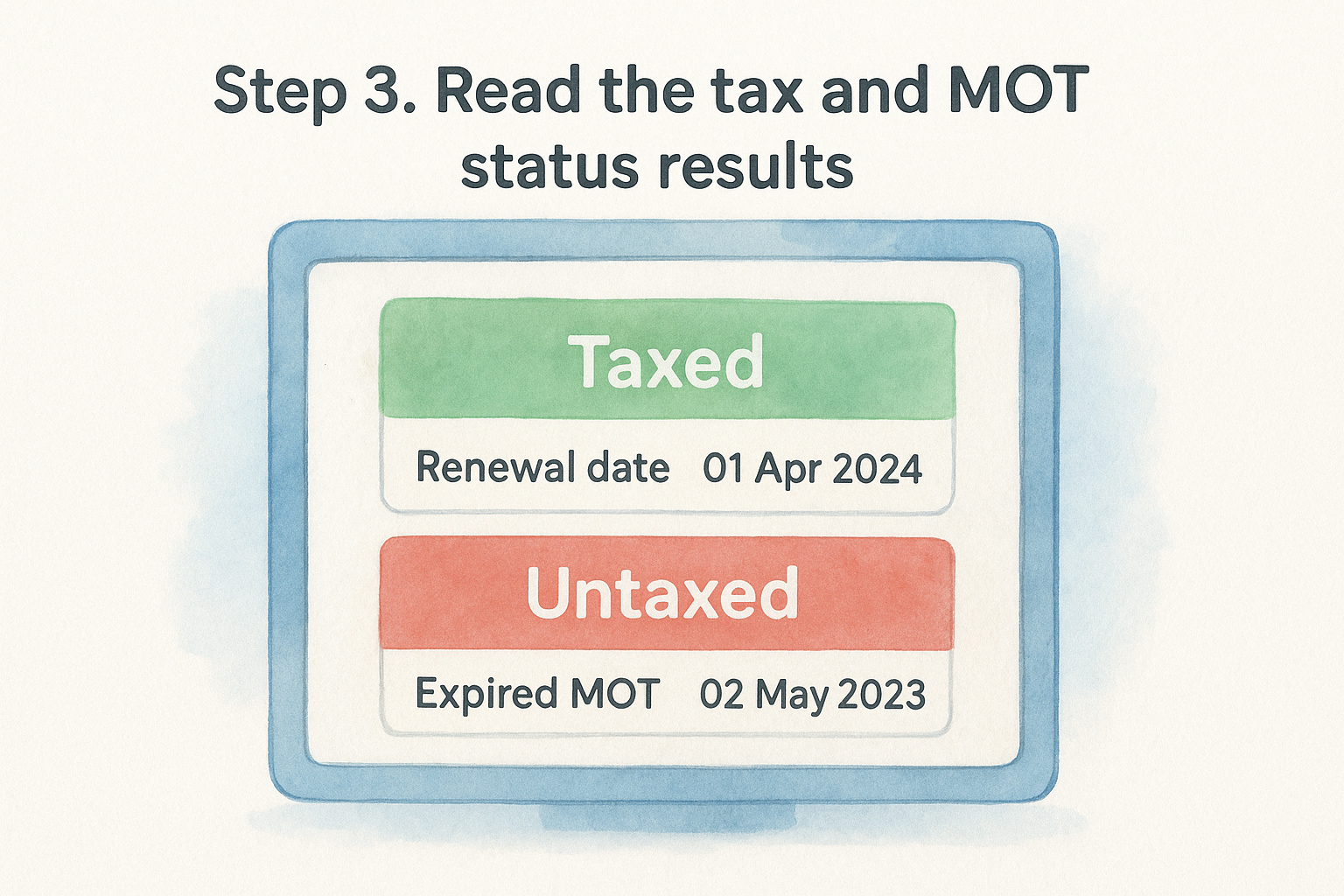
Once the search runs, you'll see a handful of fields rather than a wall of text, and each one tells you something specific about the car's legal status on the road. The tax status field is the headline figure, showing whether the vehicle is taxed, untaxed, or SORN (Statutory Off Road Notification), along with the exact renewal date if it's currently taxed.
Understanding the status categories
Most results fall into one of a few clear categories, and knowing what each means saves you chasing the seller for explanations they might not have:
| Status shown | What it means |
|---|---|
| Taxed | Vehicle is legally on the road, with a renewal date shown |
| SORN | Vehicle is declared off road and can't legally be driven |
| Untaxed | Tax has lapsed and the car shouldn't be on public roads |
| Not found | Reg doesn't match DVLA records, worth rechecking for a typo |
A car showing as SORN or untaxed isn't a paperwork technicality, it's a car you can't legally drive home.
Checking the MOT alongside tax
Right next to the tax details, you'll usually see the MOT status and expiry date, since the two checks draw from the same DVLA-linked records. Look at both together: a car can be taxed but running on an expired MOT, which still makes it illegal to drive despite the tax being valid. Comparing these two dates against the mileage and service history takes barely a moment longer and gives you a much clearer picture before you commit to anything.
Step 4. Use the results before buying or renewing tax
Once you've read the tax and MOT status, the next move depends on what the results show. Getting the vehicle tax result right at this stage protects you from buying a car you can't legally drive off the forecourt, and it also tells you exactly what to budget for once it's yours.
If you're buying the car
Never let a seller talk you round a SORN or untaxed status with "I'll sort it before you collect it". Push for proof, or better, insist the tax gets sorted before any money changes hands. Here's how to handle each outcome:
- Taxed with a valid renewal date: proceed as normal, but note the renewal date so you're not caught out a month later.
- SORN: the vehicle can't legally be driven on public roads until it's taxed again, so factor that into your collection plans.
- Untaxed: treat this as a red flag rather than a minor detail, since driving it home without valid tax is an offence.
- Not found: recheck the reg for a typo before assuming anything sinister, then try again.
Don't drive away in a car that isn't taxed, no matter what the seller promises.
If you're renewing your own tax
When the check confirms your own vehicle's tax is due soon, renew it directly through GOV.UK's vehicle tax service rather than a third party, since that's the official channel and avoids unnecessary fees. Set a reminder for the renewal date shown in your results, since missing it even by a day technically puts you back in untaxed territory.
Keeping your car tax up to date
Checking tax status by reg only takes a minute, but it's the difference between buying a car you can drive home and one that leaves you stranded on collection day. Running a tax checker by reg before you view a car, and again before you hand over payment, costs you nothing and protects you from sellers who either don't know or won't tell you the real status.
Don't stop at tax and MOT if you're serious about the purchase. Write-off history, outstanding finance, and stolen vehicle checks catch problems a basic tax lookup never will, and they matter far more once real money's involved. Have a look at a sample premium report to see exactly what a fuller check uncovers before you decide how deep to go on your next used car purchase.